Description
Overview
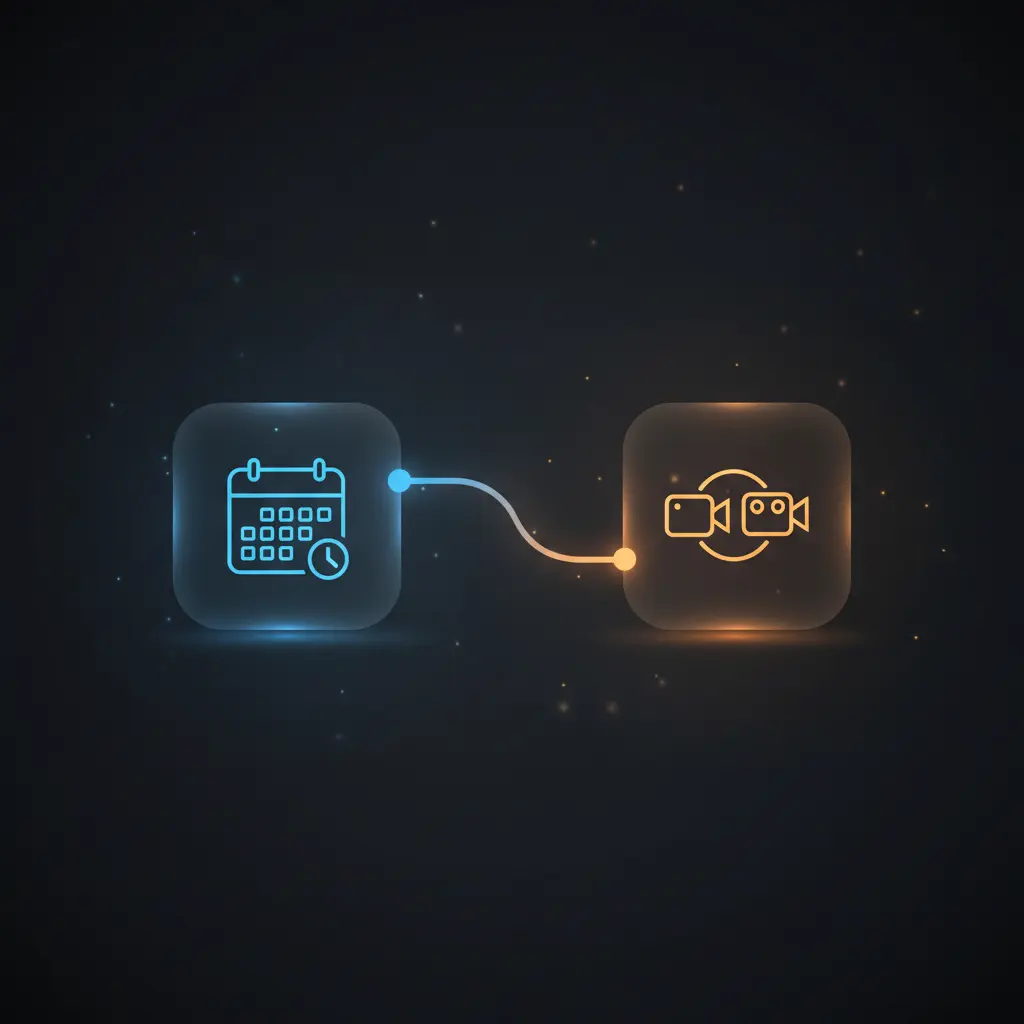
This automation workflow streamlines the creation of Zoom meetings based on upcoming Google Calendar events within a 12-hour window. By implementing a no-code integration pipeline, it filters specific calendar events to trigger Zoom meeting creation only for relevant entries, ensuring precise orchestration between scheduling and video conferencing tools.
Key Benefits
- Automates Zoom meeting creation from Google Calendar events within a 12-hour timeframe.
- Filters out events such as canceled, in-person, or keyword-specific meetings to avoid redundant Zoom links.
- Supports both scheduled daily triggers and manual execution for flexible orchestration pipelines.
- Leverages OAuth2 authentication for secure and authorized Zoom API access during integration.
Product Overview
This no-code integration workflow initiates with either a manual trigger or a scheduled cron event at 7 AM daily. Upon activation, it calculates a future timestamp 12 hours ahead using a Date & Time node. The workflow then queries a Google Calendar instance to retrieve all single events occurring between the current time and the calculated future timestamp. Events are filtered using conditional logic to exclude those marked as “transparent,” containing keywords like “signal,” “minute meeting,” or “in person.” For each qualifying event, the workflow dynamically creates a Zoom meeting. It sets the Zoom meeting topic to “Meeting with [event summary],” aligns the start time, duration in minutes, and time zone to match the calendar event’s details. The Zoom node authenticates through OAuth2 credentials, ensuring secure API access. This deterministic orchestration pipeline operates synchronously, creating Zoom meetings for filtered events without data persistence beyond API calls. Error handling defaults to platform standard retries without additional custom logic.
Features and Outcomes
Core Automation
The automation workflow processes Google Calendar events as input, applying advanced filtering criteria through an IF node to exclude non-relevant meetings. It then triggers Zoom meeting creation based on filtered data, exemplifying a precise orchestration pipeline.
- Single-pass evaluation of events within a 12-hour period for efficient processing.
- Conditional filtering based on event transparency and summary keywords.
- Deterministic creation of Zoom meetings aligned with calendar event metadata.
Integrations and Intake
This no-code integration pipeline connects Google Calendar and Zoom APIs using OAuth2 authentication. It accepts event data filtered by time range and applies keyword-based exclusion to control Zoom meeting generation.
- Google Calendar API for event retrieval within a defined time window.
- Zoom API accessed via OAuth2 for meeting creation.
- Cron and manual triggers to initiate event intake.
Outputs and Consumption
The workflow outputs are Zoom meetings created synchronously for each filtered Google Calendar event. Meeting details include dynamically assigned topics, start times, durations, and time zones matching the calendar data.
- Zoom meeting creation responses with topic, start time, and duration fields.
- Synchronous execution ensuring immediate meeting availability post-trigger.
- Filtered event dataset reduces noise in meeting creation output.
Workflow — End-to-End Execution
Step 1: Trigger
The workflow begins with either a scheduled cron trigger set to execute once daily at 7 AM or a manual trigger node. This allows for both automated daily synchronization and on-demand execution as needed.
Step 2: Processing
Upon trigger, the Date & Time node calculates an ISO timestamp 12 hours into the future. This timestamp defines the upper boundary for event queries. The subsequent Google Calendar node fetches all single events occurring between the current time and this calculated timestamp. Basic presence checks ensure the necessary time and event data are available for filtering.
Step 3: Analysis
The IF node applies filtering conditions to exclude events marked as “transparent,” or those whose summaries contain the strings “signal,” “minute meeting,” or “in person.” Only events passing these conditions proceed to Zoom meeting creation, ensuring relevant event selection based on deterministic rules.
Step 4: Delivery
The Zoom node creates meetings for each filtered event. Meeting parameters such as topic, start time, duration, and time zone are dynamically set from calendar event data. OAuth2 credentials authenticate the API calls. The workflow completes synchronously after meeting creation without persisting data externally.
Use Cases
Scenario 1
An organization needs to ensure all virtual meetings are synchronized with their Google Calendar events automatically. This workflow filters out canceled and in-person events, creating Zoom meetings only for relevant online appointments, reducing manual scheduling effort and ensuring accurate meeting metadata.
Scenario 2
A remote team requires daily setup of Zoom meetings for all scheduled events within the next 12 hours. By using a daily cron trigger, the workflow automatically generates needed Zoom links each morning, providing deterministic, on-time meeting availability aligned with the calendar.
Scenario 3
A user prefers to manually initiate Zoom meeting creation based on upcoming calendar events. The manual trigger node supports this use case by allowing on-demand execution, producing Zoom meetings for filtered events in a single workflow run without additional configuration.
How to use
Integrate this automation workflow into your n8n environment by importing the workflow JSON. Replace the placeholder Google Calendar ID with your actual calendar identifier. Ensure OAuth2 credentials are configured for both Google Calendar and Zoom nodes to enable authenticated API access. The workflow can run automatically daily at 7 AM via the cron trigger or manually via the manual trigger node. Once activated, it will fetch upcoming calendar events, filter according to defined criteria, and create Zoom meetings accordingly. The expected result is the synchronous creation of Zoom meetings reflecting your calendar’s relevant events within a 12-hour window.
Comparison — Manual Process vs. Automation Workflow
| Attribute | Manual/Alternative | This Workflow |
|---|---|---|
| Steps required | Multiple manual steps to check calendar and create meetings individually | Single automated process with conditional filtering and meeting creation |
| Consistency | Subject to human error and missed meetings | Deterministic filtering and Zoom meeting creation based on event data |
| Scalability | Limited by manual scheduling capacity | Handles multiple events within a 12-hour window automatically |
| Maintenance | Requires ongoing manual effort and calendar management | Low maintenance with OAuth2 credential setup and calendar ID configuration |
Technical Specifications
| Environment | n8n workflow automation platform |
|---|---|
| Tools / APIs | Google Calendar API, Zoom API |
| Execution Model | Synchronous with cron and manual trigger options |
| Input Formats | Google Calendar event JSON objects |
| Output Formats | Zoom meeting creation API requests and responses |
| Data Handling | Transient processing; no external data persistence |
| Known Constraints | Requires valid OAuth2 credentials and calendar ID configuration |
| Credentials | OAuth2 for Google Calendar and Zoom APIs |
Implementation Requirements
- OAuth2 credentials must be configured for both Google Calendar and Zoom nodes.
- Valid Google Calendar ID must be specified in the Google Calendar node parameters.
- Network access to Google and Zoom APIs must be available from the n8n environment.
Configuration & Validation
- Ensure OAuth2 credentials are properly set up and authorized for Google Calendar and Zoom APIs.
- Replace placeholder calendar ID with the correct calendar identifier in the Google Calendar node.
- Test manual trigger to confirm events are fetched, filtered, and Zoom meetings are created as expected within the 12-hour window.
Data Provenance
- Trigger nodes: Cron Once a Day and On clicking ‘execute’ initiate the workflow.
- Google Calendar node fetches event data within the defined time range.
- IF Zoom meeting node applies conditional filters to event summaries and transparency.
- Zoom node uses OAuth2 credentials to create meetings with parameters derived from calendar events.
- Output fields include meeting topic, start time, duration, and time zone.
FAQ
How is the automation workflow triggered?
The workflow can be triggered automatically once daily at 7 AM via a cron node or manually through a manual trigger node, providing flexible execution options.
Which tools or models does the orchestration pipeline use?
This orchestration pipeline integrates Google Calendar and Zoom APIs using OAuth2 authentication, with filtering logic applied via conditional nodes to determine which events trigger Zoom meeting creation.
What does the response look like for client consumption?
The workflow outputs Zoom meeting creation confirmations with details such as meeting topic, start time, duration, and time zone, synchronized with Google Calendar event metadata.
Is any data persisted by the workflow?
No external data persistence occurs; the workflow processes data transiently and only interacts with APIs to create Zoom meetings based on calendar events.
How are errors handled in this integration flow?
Error handling relies on n8n platform defaults, which include retries and failure notifications; no custom error handling or backoff logic is implemented in this workflow.
Conclusion
This automation workflow provides a dependable method to synchronize Google Calendar events with Zoom meetings within a 12-hour timeframe, applying deterministic filtering to exclude irrelevant events. It supports both scheduled and manual triggers, ensuring flexibility in execution. The workflow relies on accurate OAuth2 credential setup and valid calendar configuration for operation. With no persistent data storage beyond API calls, it maintains security and data integrity. The solution reduces manual scheduling overhead by automating meeting creation aligned with calendar metadata, subject to external API availability and connectivity.

















Reviews
There are no reviews yet.