
Description
Overview
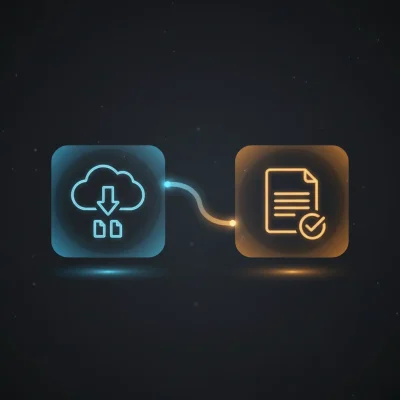
This file creation notification workflow automates monitoring of a specific Google Drive folder, providing an event-driven alert system. This automation workflow uses a Google Drive trigger configured to detect newly created files within a designated folder, enabling real-time email notifications upon file additions.
Designed for teams or administrators requiring immediate awareness of new files, it eliminates manual folder checks by delivering timely alerts. The workflow’s core trigger node relies on OAuth2 authentication to securely access Google Drive and monitor file creation events.
Key Benefits
- Automates file creation detection in a specific Google Drive folder for real-time updates.
- Delivers email notifications instantly with the new file’s name using a no-code integration.
- Reduces manual monitoring effort and improves responsiveness to file additions.
- Utilizes OAuth2 authentication for secure access to Google Drive resources.
Product Overview
This file creation notification workflow triggers when a new file is added to a specified Google Drive folder identified by its folder ID. The Google Drive Trigger node listens specifically for “fileCreated” events, ensuring activation only on new file additions. Upon activation, the workflow passes the file metadata downstream.
The workflow then executes an email sending node that constructs a notification message including the file name extracted from the trigger’s JSON output. The email is dispatched synchronously via SMTP credentials configured within the workflow environment.
Error handling follows the platform’s default behavior with no explicit retry or backoff mechanisms configured. The workflow processes transient data securely, leveraging OAuth2 for Google Drive access and SMTP authentication for email delivery without persisting any file content or sensitive data.
Features and Outcomes
Core Automation
This automation workflow receives file creation events from a monitored Google Drive folder and routes metadata to an email dispatch node. The Google Drive Trigger node initiates the process based on event-driven fileCreated notifications.
- Single-pass event detection triggers workflow only on new file additions.
- Deterministic notification based on exact folder monitoring via folder ID.
- Direct connection between trigger and email nodes for minimal latency.
Integrations and Intake
The workflow integrates Google Drive and SMTP email services using OAuth2 and SMTP credentials respectively. It listens for fileCreated events in a specified Google Drive folder, expecting metadata including file name and ID.
- Google Drive Trigger node monitors a single target folder identified by folder ID.
- SMTP Email node sends notifications with dynamic file name content.
- OAuth2 authentication secures Google Drive API access.
Outputs and Consumption
The output consists of an email notification sent synchronously upon each file creation event. The email includes the file name in the message body and uses fixed email addresses for sender and recipient.
- Email subject set to “File Update” for uniform notification identification.
- Message body dynamically inserts created file name from trigger data.
- Delivery occurs immediately after trigger activation, with no batching or delay.
Workflow — End-to-End Execution
Step 1: Trigger
The workflow begins with a Google Drive Trigger node configured to monitor a specific folder for “fileCreated” events. The node activates whenever a new file is added to the folder identified by its unique folder ID. OAuth2 credentials provide authenticated access to the Google Drive API.
Step 2: Processing
After triggering, the workflow performs basic presence checks on the incoming event data, primarily extracting the file name from the JSON payload. No additional validation or transformation is applied, passing the metadata unchanged.
Step 3: Analysis
The workflow applies straightforward logic, using the trigger event as an unconditional activation. There are no threshold criteria or branching; the fileCreated event directly causes the next step to execute an email notification.
Step 4: Delivery
The Send Email node constructs an email with a fixed subject and dynamically inserts the new file’s name into the message body. The email is sent synchronously using SMTP credentials, with predefined sender and recipient addresses.
Use Cases
Scenario 1
A shared Google Drive folder receives new project documents from multiple contributors. This workflow automates notifications so project managers receive immediate email alerts listing the new file names, eliminating manual file checks and improving document tracking.
Scenario 2
An administrative team requires prompt updates when invoices are uploaded to a specific folder. By automating email notifications triggered by file creation events, the workflow ensures finance personnel can process invoices without delay.
Scenario 3
A compliance officer monitors a folder for newly added reports. This workflow provides real-time email alerts with file details, enabling timely review and archival actions without manual monitoring of the folder contents.
How to use
Import the workflow into n8n and configure Google Drive OAuth2 credentials with access to the target folder. Set the folder ID to the folder you want to monitor for new files. Configure SMTP credentials with valid email server details for notification dispatch.
Once activated, the workflow runs continuously, listening for fileCreated events in the specified folder. When a new file is added, an email with the file name is sent to the configured recipient. Users can expect immediate email alerts corresponding to new file creations.
Comparison — Manual Process vs. Automation Workflow
| Attribute | Manual/Alternative | This Workflow |
|---|---|---|
| Steps required | Manual folder checks and manual email notifications | Automated event detection and email dispatch in a single workflow |
| Consistency | Human error and delays possible in notifications | Deterministic trigger on file creation ensures consistent alerts |
| Scalability | Limited by manual monitoring capacity | Scales automatically with folder activity without additional effort |
| Maintenance | Requires ongoing manual oversight and process updates | Low maintenance with credential updates as primary requirement |
Technical Specifications
| Environment | n8n automation platform with internet access |
|---|---|
| Tools / APIs | Google Drive API (OAuth2), SMTP email server |
| Execution Model | Event-driven, synchronous email sending |
| Input Formats | Google Drive fileCreated event JSON payload |
| Output Formats | Plain text email notification with file name |
| Data Handling | Transient metadata processing; no file content persisted |
| Known Constraints | Requires active Google Drive OAuth2 and SMTP credentials |
| Credentials | Google Drive OAuth2, SMTP authentication |
Implementation Requirements
- Valid Google Drive OAuth2 credentials with access to the target folder.
- Configured SMTP credentials for email sending with authorized sender address.
- Folder ID of the Google Drive folder to monitor must be specified in the trigger node.
Configuration & Validation
- Ensure Google Drive OAuth2 credentials are connected and authorized for folder access.
- Verify the folder ID in the Google Drive Trigger node matches the folder intended for monitoring.
- Test SMTP credentials by sending a sample email through the Send Email node independently.
Data Provenance
- Trigger node: “Google Drive Trigger” monitors fileCreated events in a specific folder.
- Credential keys: Google Drive OAuth2 API and SMTP authentication govern access and delivery.
- Output field: email message body dynamically includes {{$json[“name”]}} from trigger output.
FAQ
How is the file creation notification automation workflow triggered?
The workflow triggers on the “fileCreated” event from a designated Google Drive folder, activating immediately when a new file is added.
Which tools or models does the orchestration pipeline use?
The workflow uses Google Drive API for event detection via OAuth2 and an SMTP server for email notifications; no external models are employed.
What does the response look like for client consumption?
The response is an email notification with a fixed subject and a message body that includes the newly created file’s name, sent synchronously after each trigger event.
Is any data persisted by the workflow?
No file content or metadata is persisted; the workflow processes metadata transiently and only uses it to construct the notification email.
How are errors handled in this integration flow?
The workflow relies on n8n’s default error handling without explicit retry or backoff logic configured for trigger or email nodes.
Conclusion
This file creation notification workflow provides a reliable, event-driven automation pipeline that monitors a specific Google Drive folder and sends immediate email alerts when new files appear. It ensures consistent and timely notifications through OAuth2-secured Google Drive API access and authenticated SMTP email delivery. The workflow is straightforward, with minimal maintenance required aside from credential management. A notable constraint is its dependency on external API availability for Google Drive and SMTP services to function correctly.


















Reviews
There are no reviews yet.