Description
Overview
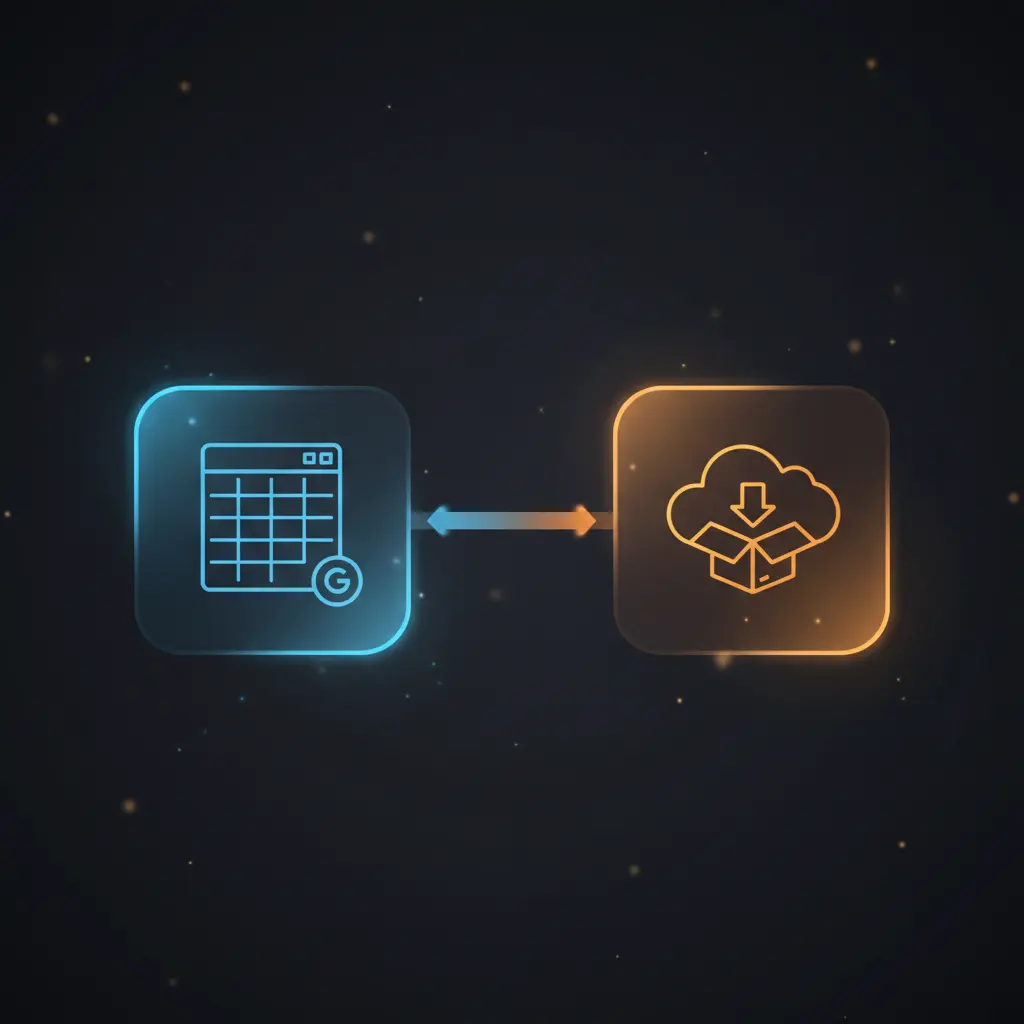
This data export automation workflow orchestrates periodic extraction of Google Sheet content, conversion to Excel, and upload to Dropbox. The workflow operates as a scheduled orchestration pipeline, triggered every 15 minutes by an interval node to ensure fresh data availability for users managing spreadsheet backups or cross-platform data sharing.
Designed for data administrators and operations teams, it addresses the core challenge of manual file export and upload redundancy by implementing a fully automated, no-code integration that reads a defined Google Sheet using Google API credentials and processes this input into a consumable Excel format.
Key Benefits
- Automates Google Sheet data extraction on a fixed 15-minute interval for consistent updates.
- Converts JSON sheet data to Excel (.xls) format, enabling cross-application compatibility.
- Uploads Excel files as binary data directly to Dropbox, ensuring data integrity during transfer.
- Reduces manual steps by integrating Google Sheets, file conversion, and Dropbox upload in one pipeline.
Product Overview
This automation workflow initiates on a fixed timer, triggering every 15 minutes via an interval node. The first operational step uses Google Sheets node to read spreadsheet data from a specific sheet identified by its sheet ID. This node requires valid Google API credentials for authorized access. The retrieved data is passed to a spreadsheet file node that converts the JSON-formatted sheet data into an Excel (.xls) file, producing a binary output suitable for file storage.
Following conversion, the workflow uploads the Excel file to Dropbox using the Dropbox node, authenticated through Dropbox API credentials. The file is saved at a static path, overwriting the previous export to maintain an up-to-date document. The execution model is fully synchronous in sequence but runs asynchronously on a scheduled interval. Error handling defaults to platform standards without custom retry or backoff logic configured.
Features and Outcomes
Core Automation
This no-code integration pipeline begins with a timed trigger every 15 minutes, invoking data extraction from a specified Google Sheet. The workflow deterministically converts the data into an Excel file and forwards it for upload.
- Single-pass evaluation from data read to upload in a linear sequence.
- Deterministic file overwriting to maintain the latest data snapshot in Dropbox.
- Consistent cycle execution with fixed interval scheduling.
Integrations and Intake
The workflow integrates Google Sheets for data intake, requiring OAuth-based Google API credentials to access the sheet by its unique ID. Dropbox integration uses API key credentials to securely upload files. The expected payload originates as JSON-formatted sheet data, converted internally before upload.
- Google Sheets: data source and extraction using authorized API access.
- Spreadsheet File node: conversion utility transforming JSON data to Excel format.
- Dropbox: storage endpoint using binary upload with authenticated API credentials.
Outputs and Consumption
The final output is a binary Excel (.xls) file uploaded to a predefined Dropbox folder. The workflow runs asynchronously on a schedule, returning no direct synchronous response but ensuring file availability in Dropbox. Key output includes the Excel file at the specified path.
- Excel (.xls) binary file format.
- Dropbox folder path: “/my-sheets/prices.xls”.
- File overwrite ensures single current version availability.
Workflow — End-to-End Execution
Step 1: Trigger
The workflow initiates every 15 minutes via an interval trigger node. This scheduled event starts the sequence without external input, ensuring periodic execution without manual intervention.
Step 2: Processing
Upon triggering, the Google Sheets node reads data from a specified sheet using the sheet ID parameter and Google API credentials. Basic presence checks ensure the sheet data is retrieved before passing it to the next stage.
Step 3: Analysis
Data conversion occurs in the spreadsheet file node, which transforms the JSON sheet data into a binary Excel file format. This step applies a deterministic operation without conditional branches or heuristics.
Step 4: Delivery
The binary Excel file is uploaded to Dropbox at a fixed path using the Dropbox node authenticated via API credentials. The upload replaces any existing file at the location, ensuring the latest data is stored for downstream consumption.
Use Cases
Scenario 1
Organizations needing regular backups of Google Sheet data can automate exports to Excel files. This workflow eliminates manual downloads and uploads, providing a consistent, scheduled backup in Dropbox accessible for audit or recovery.
Scenario 2
Teams requiring Excel versions of live Google Sheets data for reporting can use this pipeline to update files automatically every 15 minutes, ensuring reports always reflect current data without manual refresh or file handling.
Scenario 3
Enterprises integrating spreadsheet data with Dropbox-based workflows benefit from automated file conversion and upload, reducing human error and streamlining cross-platform data synchronization in a no-code orchestration pipeline.
How to use
To deploy this automation workflow in n8n, import the workflow JSON and configure the Google API and Dropbox credentials with appropriate access rights. Confirm the Google Sheet ID matches the target spreadsheet. Activate the workflow to run on its 15-minute interval schedule. Once live, the workflow will continuously export the latest Google Sheet data as an Excel file to Dropbox, overwriting the previous file automatically.
Users can verify successful execution by checking Dropbox for the updated Excel file at the designated path. No manual input is required during operation, and logs within n8n provide execution details for troubleshooting.
Comparison — Manual Process vs. Automation Workflow
| Attribute | Manual/Alternative | This Workflow |
|---|---|---|
| Steps required | Multiple manual steps: download, convert, upload | Single automated pipeline with scheduled execution |
| Consistency | Variable due to human error and timing | Deterministic, interval-triggered export every 15 minutes |
| Scalability | Limited by manual effort and availability | Scales automatically with no additional user input |
| Maintenance | High, due to repetitive manual tasks | Low, requires credential updates and occasional workflow review |
Technical Specifications
| Environment | n8n automation platform |
|---|---|
| Tools / APIs | Google Sheets API, Dropbox API, Spreadsheet File converter |
| Execution Model | Scheduled interval trigger with sequential node execution |
| Input Formats | Google Sheets JSON data |
| Output Formats | Excel file (.xls) as binary data |
| Data Handling | In-memory transient conversion, no persistent data storage |
| Known Constraints | Relies on availability of Google Sheets and Dropbox APIs |
| Credentials | Google API OAuth, Dropbox API key |
Implementation Requirements
- Valid Google API credentials with read access to the target Google Sheet.
- Dropbox API credentials with write permissions for the target upload folder.
- n8n instance configured to run scheduled workflows with internet access to external APIs.
Configuration & Validation
- Verify Google API credentials are correctly linked and authorized to access the specified sheet ID.
- Confirm Dropbox credentials allow file upload and overwrite at the designated path.
- Test trigger execution manually or wait for scheduled run, then validate the Excel file appears and contains up-to-date data.
Data Provenance
- Triggered by “Trigger all 15 min” interval node every 15 minutes.
- Data extracted using “Read Sheet” Google Sheets node with sheet ID parameter.
- Conversion handled by “Convert to XLS” spreadsheet file node; output uploaded via “Upload Dropbox” node.
FAQ
How is the data export automation workflow triggered?
The workflow is triggered every 15 minutes using an interval node, initiating a scheduled orchestration pipeline without manual input.
Which tools or models does the orchestration pipeline use?
The pipeline uses Google Sheets API for data intake, a spreadsheet file node for JSON-to-Excel conversion, and Dropbox API for file upload.
What does the response look like for client consumption?
The workflow outputs a binary Excel (.xls) file uploaded to a specified Dropbox folder, overwriting the previous file to maintain currency.
Is any data persisted by the workflow?
The workflow processes data transiently in memory and does not persist any intermediate data outside the final Excel file stored in Dropbox.
How are errors handled in this integration flow?
Error handling relies on n8n platform defaults; no custom retry, backoff, or idempotency mechanisms are configured in this workflow.
Conclusion
This workflow provides a reliable method to automate Google Sheet data export, conversion, and Dropbox upload on a fixed 15-minute schedule. By eliminating manual intervention, it ensures consistent and up-to-date Excel file availability in Dropbox for downstream use. The process depends on the continuous availability and authorization of Google Sheets and Dropbox APIs, representing the primary operational constraint. Overall, it offers a stable, no-code data synchronization pipeline suited for environments requiring frequent spreadsheet backups or cross-platform data sharing without additional maintenance complexity.


















Reviews
There are no reviews yet.